How to Update Car Parking MOD APK Without Losing Progress
You’re sitting there with 50+ customized cars and months of grinding. Then a new update drops. MOD APKs don’t update like regular apps, and one wrong move erases everything.
Updating Car Parking MOD APK without losing progress isn’t complicated, but it requires a specific process. This guide walks you through the exact update method that preserves your game data.
Why MOD APKs Don’t Auto-Update
Car Parking Multiplayer MOD APK doesn’t connect to Google Play Store. The official version gets automatic updates pushed to your device. Here’s what happens when updates release:
- The game detects version mismatch when you try playing online
- Features stop working until you update
- Your game forces you to download the new version
Uninstalling the old version deletes your local game data. All your unlocked cars, customizations, and in-game currency vanish unless you follow the right update process.
The MOD APK stores progress in two places:
- Local storage (Android/data folder on your device)
- Cloud storage (if you linked email/password)
Most players rely on local storage. That’s why the update method matters.
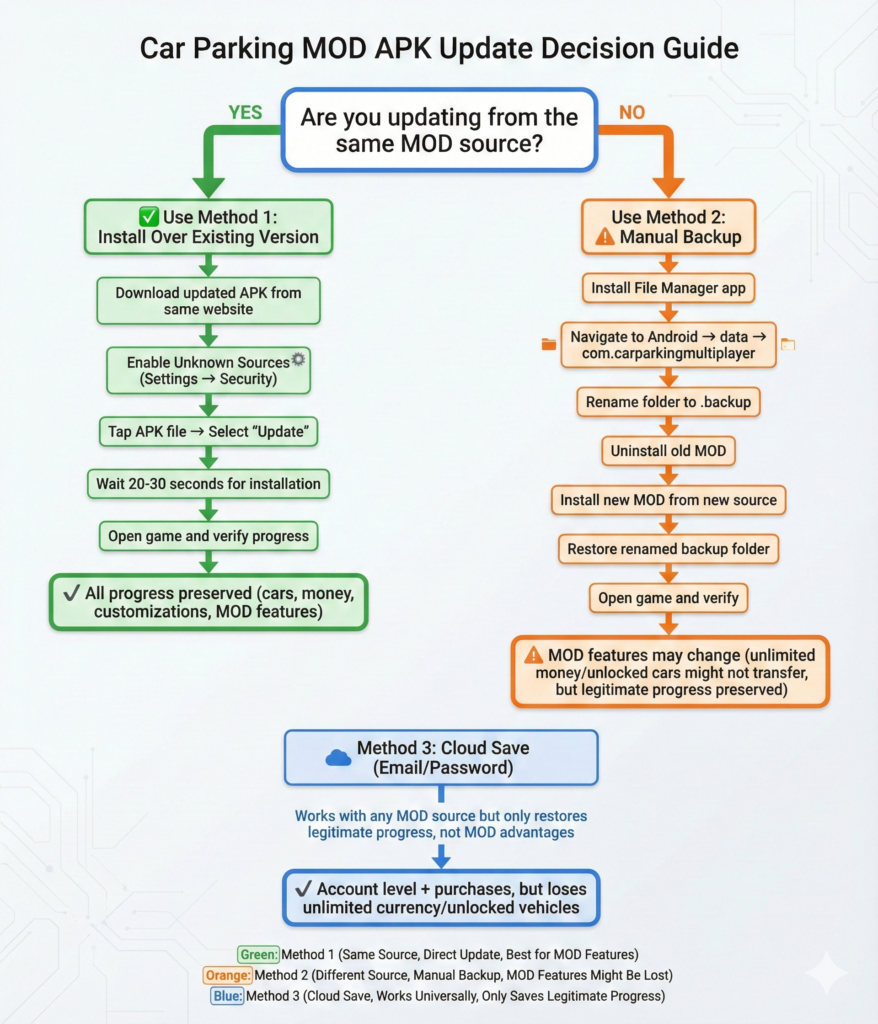
Method 1: Install Over Existing Version (Safest & Fastest)
This method works when you download the updated MOD from the same source that provided your current version. The new APK recognizes the old installation and simply overwrites it.
Step-by-Step Process
Step 1: Download the Updated MOD APK
Visit the website where you originally downloaded Car Parking MOD APK. Look for version 4.9.6 or later (as of January 2026).
Check the version number before downloading:
- Open your current game
- Go to Settings
- Note your current version (example: v4.9.5)
- Download any version higher than your current one
Step 2: Enable Unknown Sources
Before installing, your device needs permission to install apps from outside Google Play Store.
Navigate to: Settings → Security → Unknown Sources
Toggle the switch to ON. (You can disable this after installation for security.)
Step 3: Install the New Version
Locate the downloaded APK file in your Downloads folder or File Manager.
Tap the APK file. Your device shows a prompt: “Do you want to update this application?”
Important: The prompt says “update,” not “install.” This confirms the new version will install over your existing game without deleting data.
Tap Install and wait 20-30 seconds.
Step 4: Verify Your Progress
Open Car Parking Multiplayer. Check:
- Your garage (all cars should be present)
- In-game currency (money/gold totals)
- Customizations (vinyls, engine swaps, visual mods)
Everything carries over automatically because Android recognizes both versions as the same app.
Why This Method Works
The MOD APK file contains a package signature. When the new version matches the old version’s signature, Android treats it as an update, not a fresh install. Your game data stays in the Android/data/com.carparkingmultiplayer folder untouched.
This only fails if you download from a different modder who uses a different signature. That’s why downloading from your original source matters.
Method 2: Manual Backup (When Switching Sources)
Sometimes you need to switch MOD sources, maybe your original site went down, or you want features from a different modder. This requires manual backup.
Step-by-Step Process
Step 1: Install a File Manager
Download a file manager app if your phone doesn’t have one. Options include:
- Files by Google (free, lightweight)
- Solid Explorer (more features)
- Any file browser with folder access
Step 2: Locate Game Data
Open your file manager and navigate to: Android → data → com.carparkingmultiplayer
You’ll see folders like:
- files
- cache
- lib
The files folder contains your save data.
Step 3: Rename the Folder
Instead of copying (which takes time and storage), rename the folder.
Change com.carparkingmultiplayer to com.carparkingmultiplayer.backup
This prevents Android from deleting the folder when you uninstall the game.
Step 4: Uninstall the Old MOD
Go to Settings → Apps → Car Parking Multiplayer
Tap Uninstall
The game disappears, but your renamed folder stays safe in Android/data.
Step 5: Install the New MOD
Download the new MOD APK from your chosen source. Install it following the same process from Method 1.
Step 6: Restore Your Save Data
Open your file manager again. Navigate back to Android/data.
You’ll see a fresh com.carparkingmultiplayer folder (created by the new installation).
Delete this new folder completely.
Rename your backup folder from com.carparkingmultiplayer.backup back to com.carparkingmultiplayer
Step 7: Launch and Verify
Open the game. Your progress loads from the restored folder. All cars, money, and customizations appear exactly as before.
What If This Doesn’t Work?
Some MODs encrypt save data differently. If your progress doesn’t load:
- Close the game completely
- Rename folders back and forth again
- Clear the game’s cache (Settings → Apps → Car Parking → Storage → Clear Cache)
- Reopen the game
If it still fails, the new MOD uses incompatible save encryption. You’ll need to return to your original source or start fresh.
Method 3: Cloud Save (Email/Password Login)
Car Parking Multiplayer offers account creation through email and password. This syncs progress to the developer’s servers.
How to Set Up Cloud Saves
Before Updating:
- Open Car Parking Multiplayer
- Go to Settings → Account
- Tap “Create Account” or “Link Account”
- Enter your email and create a password
- Wait for confirmation (check spam folder)
The game uploads your current progress to cloud servers.
After Installing the Update:
- Open the new version
- Go to Settings → Account
- Tap “Login”
- Enter the same email/password
Your progress downloads from the cloud. This method works regardless of which MOD source you use, but there’s a catch.
The Cloud Save Limitation
Some MOD features (unlimited money, unlocked cars) exist only on your device. Cloud saves restore:
- Purchased/unlocked content (legitimate progress)
- Account level and achievements
- Friend lists and clan membership
They don’t restore:
- MOD-injected currency
- Artificially unlocked vehicles
- Modified stats
You’ll have your legitimate progress but lose MOD advantages. For most players, the local backup method (Method 2) preserves everything.
Common Update Problems (And Fixes)
“App Not Installed” Error
Cause: The new APK has a different signature than your current version.
Fix: Use Method 2 (manual backup) instead of direct installation.
“Installation Failed” Message
Cause: Insufficient storage space.
Fix:
- Delete old videos/photos to free up 2GB minimum
- Move media to cloud storage
- Uninstall unused apps
Progress Loads But Cars Are Missing
Cause: Partial data corruption during update.
Fix:
- Force stop the game (Settings → Apps → Force Stop)
- Clear cache only (not data)
- Reopen the game
If cars still missing, the update changed the vehicle database. Some older MODs don’t support newer car models. You’ll keep your currency but need to re-unlock vehicles.
Online Mode Won’t Connect
Cause: Version mismatch between your MOD and official servers.
Fix: MOD versions sometimes lag behind official updates. Wait 2-3 days for modders to release compatible versions, or switch to a MOD source that updates faster.
Update Frequency and Version Tracking
Car Parking Multiplayer releases updates roughly every 30-45 days. Major updates (4.9.x → 5.0.x) change core features. Minor updates (4.9.5 → 4.9.6) fix bugs and add small content.
Track updates through:
- The website where you downloaded your MOD
- Reddit communities (r/CarParkingMultiplayer)
- Telegram MOD channels
Bookmark your download source. Check weekly for updates if you play online mode frequently.
Should You Update Immediately?
Update right away if:
- You can’t connect to multiplayer
- The game crashes on startup
- New cars/maps interest you
Wait a few days if:
- Your current version works fine
- You play offline only
- Early adopters report bugs in the new version
MOD developers sometimes rush updates. Version 1.0 of a new release may have issues that version 1.1 fixes three days later.
Protecting Your Progress Long-Term
Beyond updates, protect your game data from:
Device Resets
Factory resets delete everything, including game folders. Before resetting:
- Copy the entire Android/data/com.carparkingmultiplayer folder
- Upload to Google Drive or email it to yourself
- After reset, restore the folder using a file manager
Corrupted Storage
SD cards fail. Phone storage corrupts. Back up your game folder monthly if you’ve invested serious time.
Use cloud storage (Google Drive, Dropbox) to store copies. The folder is usually 100-300MB—small enough for free cloud plans.
Accidental Uninstalls
Kids tap your screen. You accidentally long-press and uninstall. Protect yourself:
- Enable app lock (Settings → Security → App Lock on most Android phones)
- Keep a backup from the previous week in cloud storage
- Link your email/password for partial cloud recovery
Final Checklist: Update Without Losing Progress
Before you update:
- Identify your download source (bookmark it)
- Check current version number (Settings → About)
- Download the newest version from the same source
- Enable Unknown Sources in Settings
- Install directly over old version
If that fails:
- Install a file manager app
- Navigate to Android/data/com.carparkingmultiplayer
- Rename the folder (add .backup)
- Uninstall the old MOD
- Install the new MOD
- Restore the renamed folder
- Launch and verify
FAQs
Q: Will I lose my unlimited money and gold after updating Car Parking Multiplayer MOD APK?
A: It depends on the update method. If you install over the existing version from the same MOD source, your unlimited currency stays intact because it’s stored in your game data files. If you switch to a different MOD source, you might lose MOD-specific features like unlimited money, but your legitimate progress (cars you actually unlocked, customizations you made) transfers over.
Q: Can I update Car Parking MOD APK while keeping my account connected to multiplayer?
A: Yes. Your multiplayer account connects through email/password login, not the APK file. After updating, simply log back in with your credentials. Your clan membership, friend list, and online progress sync automatically from the game servers.
Q: How do I know if the new version comes from the same source as my current MOD?
A: Check the website URL and developer name. Download the new version from that exact same site. Different MOD creators use different package signatures, mixing sources causes the “App Not Installed” error.
Q: What if I accidentally uninstalled without backing up my data?
A: Your data is permanently deleted if you didn’t rename the game folder beforehand. There’s no recovery method for local saves. This is why the backup step matters before uninstalling. Cloud saves (email/password login) can restore some progress, but not MOD features.
Q: Does updating remove the unlimited fuel and god mode features?
A: Not if you update from the same MOD source. Those features are coded into the APK file itself, not your save data. Installing a newer version from the same modder preserves all MOD features. Switching MOD sources might give you different features (one modder’s unlimited fuel vs another’s god mode).
Q: How long after the official update do MOD versions get released?
A: Most popular MOD sites release updated versions within 2-5 days of the official update. Smaller or less active modders can take 1-2 weeks. If you need to play online immediately, check multiple MOD sources, some modders work faster than others.
Q: Can I use the backup method to transfer progress to a different device?
A: Yes. Copy the entire Android/data/com.carparkingmultiplayer folder to cloud storage (Google Drive, Dropbox). On your new device, install the same MOD version, then replace the new device’s game folder with your backed-up folder. Make sure both devices run the same MOD version for compatibility.
Q: Will updating break my custom skins and vinyls?
A: Custom skins and vinyls usually survive updates because they’re stored in the game’s files folder. However, major updates (4.9.x to 5.0.x) sometimes change the skin format. If your skins disappear after updating, they’re incompatible with the new version, you’ll need to reapply them or find updated versions.
Q: What’s the difference between “clear cache” and “clear data”?
A: Clearing cache removes temporary files (images, loading screens) to free up space—it doesn’t delete your progress. Clearing data wipes everything, including your cars, money, and customizations. Only clear cache when troubleshooting. Never clear data unless you want to start completely fresh.
Q: Can I downgrade to an older MOD version if the new update has bugs?
A: Yes, using the same installation method. Download the older APK and install it over the buggy version. Your save data usually works with older versions, but some newer features might not display correctly. Downgrading is safe if you stay within the same major version (4.9.6 → 4.9.5 works fine; 5.0.1 → 4.9.6 might cause issues).
Q: Why does my game show “version mismatch” in multiplayer after updating?
A: Your MOD version doesn’t match the official game’s current version. Either wait for your MOD source to release a newer update, or switch to a MOD that updates faster. Some modders lag behind by a week, which locks you out of online mode.
Q: Do I need to uninstall the old version before installing the update?
A: No. That’s the whole point of Method 1 (install over existing version). Android recognizes the new version as an update and replaces the old files while keeping your game data. Only uninstall if you’re switching MOD sources or if the direct update method fails.
Q: Will Android 14 or newer versions block MOD APK installations?
A: Android 14 increased security restrictions, but you can still install MOD APKs. You’ll see extra warning prompts about “unverified apps.” Just tap “Install Anyway” and confirm. The process takes a few extra steps, but MODs still work normally.
Q: Can I update while the game is running?
A: No. Close Car Parking Multiplayer completely before installing the update. If the game is running in the background, Android can’t replace the APK files. Force stop it in Settings → Apps → Car Parking Multiplayer → Force Stop, then proceed with installation.
Q: What happens to my level progress and completed challenges?
A: Level completions and challenge records stay in your save data. After updating, all your completed parking levels, achievements, and unlocked maps remain exactly as before. The update only changes the game’s code, not your personal progress.