How to Play Car Parking Multiplayer MOD APK on PC (2026)
By CPM MOD Team
Key Takeaways
- BlueStacks is the best emulator for modern PCs with 8 GB+ RAM. LDPlayer runs better on mid-range and older hardware.
- Installing the MOD APK on an emulator takes one extra step, drag and drop the APK file into the emulator window instead of downloading from the Play Store.
- Enabling virtualization (VT-x or AMD-V) in your BIOS is the single biggest performance improvement you can make.
- Default keyboard controls use WASD for steering and throttle, Spacebar for handbrake, and mouse for camera, all fully customizable in every emulator.
Car Parking Multiplayer MOD APK works on PC through Android emulators. An emulator runs a virtual Android device inside your computer, so any Android app, including modded APKs, installs and runs the same way it would on a phone.
The advantages of playing on PC are obvious. Bigger screen, keyboard and mouse controls, better frame rates if your PC has decent hardware, and no battery drain. The MOD features (unlimited money, all cars unlocked, no ads) all work on emulators exactly as they do on mobile.
This guide covers which emulator to pick, how to install the MOD APK on it, keyboard controls, performance optimization, and fixes for common problems.
Which Emulator Should You Use?
There are four emulators worth considering. Each performs differently depending on your hardware.
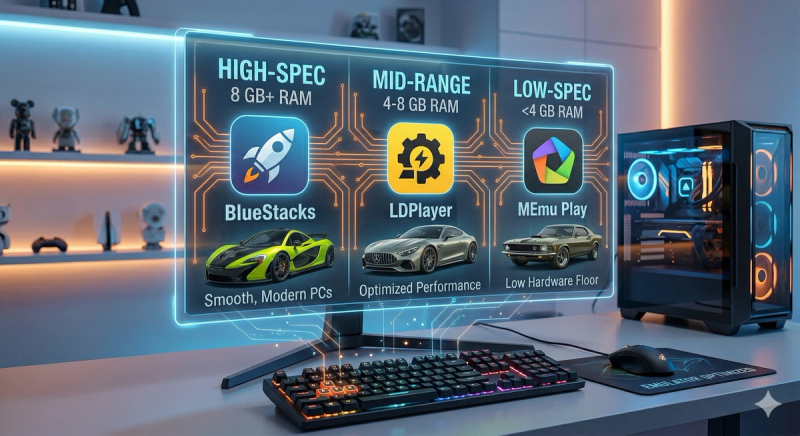
If you have 8 GB of RAM or more, go with BlueStacks. It handles Car Parking Multiplayer's large maps and multiplayer sessions without stuttering. It's the most widely supported emulator, so troubleshooting information is easy to find.
If your PC has 4 to 8 GB of RAM, LDPlayer is the better choice. It consumes fewer background resources and delivers smoother frame rates on hardware that would struggle with BlueStacks. It's specifically optimized for mobile gaming.
If you're on a very old or low-spec machine, MEmu Play has the lowest hardware floor. It won't perform as well as the other two on capable machines, but it runs where others won't.
NoxPlayer sits in between. It works well but doesn't have a standout advantage over BlueStacks or LDPlayer. It's a solid backup if the other two give you trouble.
This guide focuses on BlueStacks and LDPlayer since they cover most setups. The MOD APK installation process and keyboard controls work the same way across all four.
System Requirements
These are the minimums. You can run the emulator below these specs, but Car Parking Multiplayer will lag badly, especially on larger maps and in multiplayer.
Minimum Requirements:
- OS: Windows 7
- Processor: Intel or AMD dual-core
- RAM: 4 GB
- Storage: 5 GB free space
- Graphics: Integrated (Intel HD)
- Virtualization: Not required, but strongly recommended
Recommended Requirements:
- OS: Windows 10 / 11
- Processor: Quad-core, 2.5 GHz or higher
- RAM: 8 GB or more
- Storage: 10 GB free (emulator + game + data)
- Graphics: Dedicated GPU (GTX 660 or equivalent)
- Virtualization: VT-x (Intel) or AMD-V enabled in BIOS
The game itself takes about 1.78 GB once fully installed. Add the emulator's own footprint (1–2 GB), and you need at least 5 GB of free space. 10 GB gives you room for updates and OBB data files.
How to Set Up BlueStacks (Recommended)
Step 1: Download BlueStacks. Go to the official BlueStacks website and download the latest version (BlueStacks 5 as of 2026). The installer is about 600 MB.
Step 2: Install. Run the installer and follow the prompts. BlueStacks installs to your C: drive by default. If your C: drive is low on space, change the install location during setup. Installation takes 2 to 5 minutes depending on your drive speed.
Step 3: Launch and sign in. Open BlueStacks. It boots into an Android home screen. Sign in with a Google account when prompted. Use a secondary account, not the one tied to your personal email or banking apps. This keeps your primary account separated from any modded content.
Step 4: Configure emulator settings. Before installing the game, open BlueStacks Settings (gear icon in the sidebar). Under Performance, allocate at least 4 GB of RAM and 4 CPU cores to the emulator. Under Display, set the resolution to 1920x1080 and the DPI to 240. These settings give you the best balance of visual quality and performance for Car Parking Multiplayer.
Now you're ready to install the MOD APK.
How to Set Up LDPlayer (Best for Mid-Range PCs)
Step 1: Download LDPlayer. Get the latest version from the official LDPlayer website. The installer is smaller than BlueStacks, around 400 MB.
Step 2: Install. Run the setup file. LDPlayer installs faster than BlueStacks on most systems. Accept the defaults or change the install directory if needed.
Step 3: Launch and sign in. Open LDPlayer and sign into the Google Play Store with a secondary Google account.
Step 4: Configure settings. Open LDPlayer Settings. Under Performance, set RAM to 3–4 GB and CPU cores to 2–4 depending on what your system has. Under Display, 1080p with 240 DPI works well. If you're on a weaker PC, drop to 720p, the game still looks good and you'll gain 15–20 FPS.
LDPlayer's advantage shows up here. With the same RAM and CPU allocation, it typically delivers 5–10 more FPS than BlueStacks on mid-range hardware because it uses fewer background processes.
How to Install the MOD APK on Any Emulator
This is where playing on PC with the MOD differs from the standard setup. You can't install the MOD from the Google Play Store, that only gives you the official version. You need to sideload the APK file.
Step 1: Download the MOD APK to your computer. Download Car Parking Multiplayer MOD APK v4.9.7 from the download page on this site. Save it somewhere easy to find, like your Desktop or Downloads folder. The file should be around 200 MB.
Step 2: Install the APK in the emulator. You have two options:
- Drag and drop. The easiest method. Find the APK file on your computer, drag it into the emulator window, and drop it. The emulator detects it as an APK and starts installing automatically.
- Use the built-in installer. In BlueStacks, click the "Install APK" button in the sidebar and browse to the file. In LDPlayer, the option is in the toolbar at the top. In NoxPlayer, click the APK icon on the toolbar.
Installation takes 15 to 30 seconds. Once complete, the Car Parking Multiplayer icon appears on the emulator's home screen.
Step 3: Launch and verify. Open the game. First launch takes longer than usual as the game unpacks its assets (1–3 minutes). Once you're in, check your money balance and car list. If everything is unlocked and the balance shows an extremely high number, the MOD is working.
If the MOD features aren't active, uninstall the app from within the emulator (long-press the icon > Uninstall), re-download the APK, and install again. Make sure you didn't accidentally install the official version from the Play Store instead.
Important: Do not install both the official version and the MOD at the same time inside the emulator. They conflict. If you have the Play Store version installed, remove it first.
Keyboard Controls and Customization
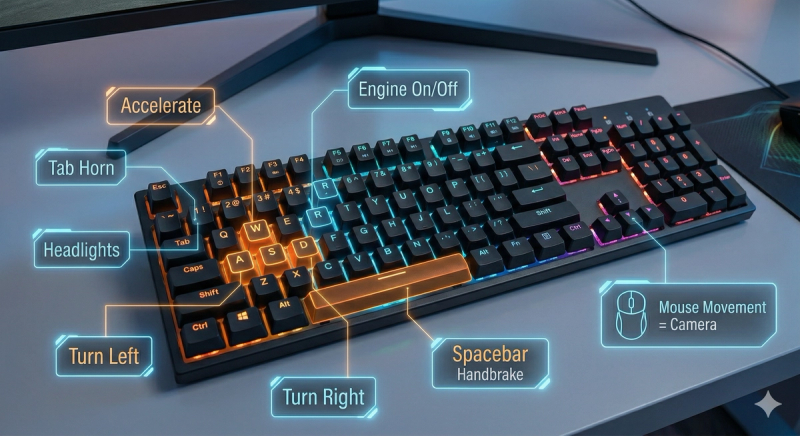
Every emulator maps touch controls to keyboard keys. Here are the default controls that work across BlueStacks, LDPlayer, and NoxPlayer:
Accelerate: W
Brake /
Reverse: S
Turn Left: A
Turn Right: D
Handbrake: Spacebar
Engine On/Off: R
Headlights: C
Horn: Tab
Camera / Look Around: Mouse movement
Gear Shift: Mouse click (on in-game gear buttons)
In-game setup first
Before touching the emulator's keymapping, go into Car Parking Multiplayer's settings (gear icon) and switch the control mode to Arrow Controls. This replaces the tilt steering with on-screen buttons, which is what the emulator's keyboard mapping needs to work with.
Customizing controls in BlueStacks
Click the keyboard icon in the sidebar to open the Keymapping Editor. You'll see an overlay of your mapped keys on top of the game screen. Click any key marker to reassign it. Drag markers to reposition which on-screen area they activate. Click Save when done.
Customizing controls in LDPlayer
Click the keyboard icon in the top toolbar. The process is identical, overlay editor, drag to reposition, click to reassign. LDPlayer also lets you set sensitivity for directional controls, which helps with steering precision.
Customizing controls in NoxPlayer
Open Settings > Keyboard Control. Same overlay system. NoxPlayer's editor is less polished than the other two but covers the same functionality.
Arrow keys work as an alternative to WASD if that feels more natural to you. Some players prefer Arrow keys for steering and WASD reassigned to camera controls.
How to Optimize Performance
If the game runs poorly out of the box, these settings fix most issues. Start with virtualization, it has the largest impact.
Enable virtualization in BIOS
This is the single most effective performance improvement. Most PCs have VT-x (Intel) or AMD-V (AMD) built into the processor but disabled by default in BIOS. Enabling it lets the emulator run Android at near-native speed instead of translating every instruction through software.
To enable it: restart your PC, press F2 or Delete during boot to enter BIOS (the key varies by motherboard manufacturer), find the virtualization option under CPU or Advanced settings, enable it, save, and exit. Your emulator should recognize it immediately on next launch.
Allocate more RAM to the emulator
4 GB is the sweet spot for Car Parking Multiplayer. Going below 3 GB causes texture pop-in and stuttering on larger maps. Going above 4 GB gives diminishing returns unless you're running other apps alongside the emulator.
Allocate more CPU cores
4 cores handles the game well. 2 cores works but you'll notice frame drops during multiplayer sessions with many players on screen.
Lower the resolution if needed
1080p looks great but demands more from your GPU. Drop to 720p if your frame rate stays below 30 FPS at 1080p. The difference is noticeable on large monitors but acceptable on smaller screens.
Close background apps.
Chrome alone can eat 2–3 GB of RAM. Close browsers, streaming apps, and anything else that competes for memory while the emulator is running.
Use the emulator's performance mode
Both BlueStacks and LDPlayer have a "High Performance" preset in their settings that prioritizes the game over visual quality. Enable it.
Using a Gamepad or Controller
All four emulators support USB and Bluetooth controllers. Xbox, PlayStation, and generic USB gamepads all work.
Plug in the controller before launching the emulator. Most emulators auto-detect it. If it doesn't register, go into the emulator's settings and look for the Controller or Gamepad section. Map the left stick to steering, triggers to throttle and brake, and face buttons to horn, handbrake, and lights.
A controller is the best way to play Car Parking Multiplayer on PC if you care about precise steering. Keyboard input is binary, the key is either pressed or not, which makes smooth turns harder. An analog stick gives you graduated input, closer to how the touch controls work on a phone.
Can You Play on Mac?
Yes, with limitations.
BlueStacks has a Mac version. It runs on macOS Catalina and above. Performance is generally worse than on Windows because BlueStacks' Mac build is less optimized. Expect lower frame rates at the same settings.
On Apple Silicon Macs (M1, M2, M3, M4), emulator support is hit or miss. BlueStacks works but runs through Rosetta 2 translation, which adds overhead. LDPlayer and NoxPlayer are Windows-only. Some users report success with UTM or Android Studio's emulator on Apple Silicon, but these aren't designed for gaming and performance reflects that.
The practical recommendation: If you have an Intel Mac, BlueStacks works and the experience is acceptable. If you have an Apple Silicon Mac, expect a rougher experience. You'll get it running, but frame rates will be lower than on a comparable Windows machine.
Troubleshooting Common Problems
Emulator freezes during game launch.
The game is unpacking data files on first launch. Give it up to 3 minutes. If it's genuinely frozen (no disk activity, no loading indicator), force close the emulator and relaunch. If it happens repeatedly, increase the RAM allocation to 4 GB.
Severe lag or low FPS.
Check whether virtualization is enabled in BIOS, this is the fix in 80% of cases. If it's already on, reduce resolution to 720p, close background apps, and make sure you've allocated at least 4 CPU cores.
"App not installed" error when sideloading the APK.
The official Play Store version is already installed in the emulator. Uninstall it first, then drag in the MOD APK again.
Black screen after loading.
Version mismatch between the MOD APK and game data. Re-download the latest MOD build (v4.9.7) and reinstall. Clear the emulator's app cache if the problem persists.
Keyboard controls don't respond.
You need to switch the in-game control mode to Arrow Controls. Tilt and gesture-based controls don't translate to keyboard input. Also verify that the emulator's keymapping is active (look for the keyboard overlay toggle in the sidebar or toolbar).
Multiplayer not connecting.
Emulators route internet through your PC's connection. If multiplayer fails, check that your firewall or VPN isn't blocking the emulator. Try disabling your firewall temporarily to test. Also make sure the emulator's network mode is set to Bridge or NAT (found in network settings).
Game crashes after a few minutes.
Not enough allocated RAM. Increase to 4 GB in the emulator's performance settings. Also check your PC's total available RAM, if your system is using 90%+ with the emulator open, close other programs.
MOD features work on mobile but not in the emulator.
Some older MOD builds have compatibility issues with specific emulator Android versions. Make sure your emulator is running Android 9 or higher (check in emulator settings > About). Download the latest MOD APK version, which is built for broader compatibility.
FAQs
Will I get banned for playing the MOD on an emulator?
The same ban risks from mobile apply. The game's anti-cheat flags behavior, not the device. Playing multiplayer with unlimited money on a fresh account gets flagged whether you're on a phone or an emulator. Use a secondary account and stick to single player if you want to stay safe.
Can I transfer my mobile save to the emulator?
Not directly. The MOD APK and official version use different app signatures, so cloud saves don't carry over. Some players manually copy their save data files from phone storage to the emulator's virtual storage, but this is unreliable and breaks with most MOD versions.
Which emulator gives the best FPS?
On modern hardware (8 GB+ RAM, dedicated GPU), BlueStacks and LDPlayer perform similarly at 50–60 FPS. On mid-range hardware, LDPlayer typically leads by 5–10 FPS because of its lower overhead. MEmu runs at 30–40 FPS on low-spec machines where the others struggle.
Can I play with friends who are on mobile?
Yes. The game doesn't separate players by device. Emulator players and mobile players share the same multiplayer servers.
Do I need a powerful GPU?
Not really. Car Parking Multiplayer isn't graphically demanding by PC standards. Integrated graphics (Intel HD 4000 and above) handle it fine at 720p. A dedicated GPU helps at 1080p and keeps frame rates above 50.
Can I use a steering wheel controller?
Emulators don't natively support steering wheel peripherals. You'd need third-party software like reWASD or JoyToKey to map the wheel's inputs to keyboard controls that the emulator recognizes. It works, but the setup isn't straightforward.
Does the MOD menu work on PC?
Yes. The floating MOD menu or VIP toggle appears inside the emulator the same way it does on mobile. You interact with it using mouse clicks instead of touch.
For the full breakdown of every MOD feature, check the Car Parking Multiplayer MOD APK Ultimate Guide. If you're installing on an Android phone instead, see our Android installation guide.
Ready to Download?
Get the latest Car Parking Multiplayer MOD APK with all premium features unlocked.
Download Now